By Stan Chang · · Updated · 2 min read · #ios-development
How to Remove and Report iCloud Calendar Spam
Current steps for junk invitations and unwanted subscriptions
Report a junk invitation or event
On iPhone:
- Open Calendar and select the unwanted event.
- Tap Report Junk.
- Tap Delete and Report Junk.
If the report option is not shown, delete the event instead. Apple’s current iPhone instructions distinguish an event from a subscribed calendar.
You can also report an iCloud invitation on a tablet or computer:
- Sign in to Calendar on iCloud.com.
- Open the unwanted event.
- Select Report Junk.
Apple says that reporting the event on iCloud.com deletes it from Calendar on the other devices signed in to the same Apple Account. See the current iCloud Calendar invitation guide.
Unsubscribe from a spam calendar
If many unwanted events belong to the same unfamiliar calendar, remove the subscription rather than deleting events one by one:
- Open Calendar on iPhone and tap Calendars.
- Tap the information button beside the unwanted calendar.
- Tap Unsubscribe or Delete Calendar.
- If Unsubscribe and Report Junk is available, use it to report the subscription to Apple as suspected junk.
Apple documents the current subscription flow in the iPhone Calendar user guide.
Choose how iCloud invitations arrive
The useful part of the original workaround still exists, but the menus have moved:
- Open Calendar on iCloud.com on a tablet or computer.
- Open the Actions menu in the sidebar and choose Settings.
- Select Account.
- Choose whether invitations arrive as in-app notifications or by email for each address.
The choice applies to devices using the same Apple Account with iCloud Calendar enabled. It changes delivery; it is not a spam filter.
Avoid the unsafe shortcuts
Do not follow links or open attachments in an unsolicited calendar event. Report the event or remove the subscription from Calendar itself. If the event led you to enter an Apple Account password or verification code elsewhere, change the password and confirm that two-factor authentication is enabled. Apple’s social-engineering guidance covers those account-recovery steps.
What changed from the 2016 guide
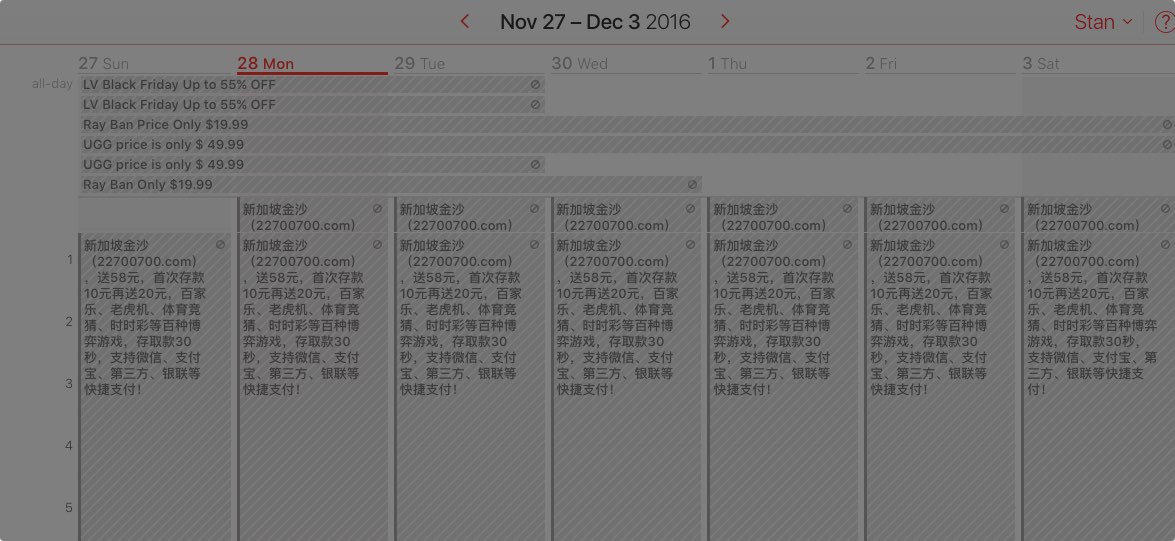
The old workaround used Preferences → Advanced → Receive event invitations as email in an earlier iCloud.com interface. The current setting is under Settings → Account, and Apple now exposes direct report-junk and unsubscribe actions. The old screenshots are intentionally no longer shown because they would send readers through a UI that no longer exists.